Tuesday, 30 July 2013

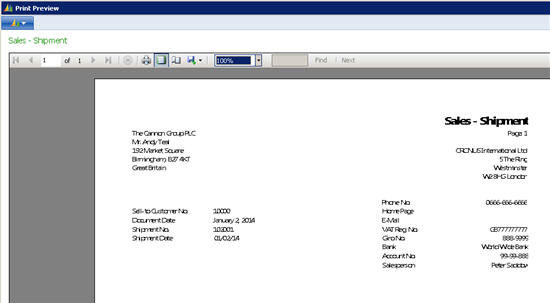
NAV 2013 - Reports may be difficult to read when printing over Terminal Services

NAV 2013 - Reports may be difficult to read when printing over Terminal Services


Monday, 29 July 2013

NAV issue - SQL Server - xp_ndo.dll // Enumusersids // Enumusergroups

NAV Issue - SQL Server - xp_ndo.dll // Enumusersids // Enumusergroups

1. Open SQL Server Management Studio >> Databases >> System Databases >> Master
2. Programmability >> Extended Stored Procedures
3. Right Click >> 'New Extended Stored Procedure'


4. Locate the DLL and populate the Name field with the below: xp_ndo_enumusergroups

Note: DLL can be found in install media - "Install Media File\NAV 2009 R2\SQLDatabase\PFiles\Microsoft Dynamics NAV\60\Database\xp_ndo.dll"


5. Give the stored procedure 'Public' access with the Execute role.


6. Repeat point 4. with the relevant path & name: xp_ndo_enumuersids

Note: This is USERSids not USERids - this has caught me out a few times. 


7. Repeat point 5.


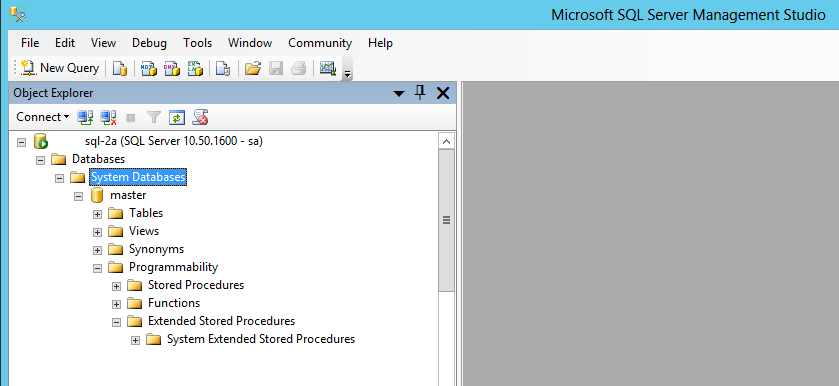
This is how it should look when you are finished:


Locking Tables

Locking Tables

Note: This affects a wide range of tables, not just 'Sales Line' table. 


This error happens when a user is running a process heavy function. For example if a user is using the Adjust Cost / Performing lots of postings / running large reports. 

Normally you will have to wait until this user has stopped running the offending process. 

To tell whether or not a use is locking a table you can do the following :

1. Log into the database through the classic client. 
2. File >> Database >> Information 


3. Click the Sessions Tab >> Then the Drill Down Arrow 


4. This will give you a list of all the users logged in at the moment. You can then look at who is ‘Blocking’ a table using the ‘Blocked’ Column. If its ticked you should be able to see the ‘Blocking User ID’ as well & from this you can determine what the user is running.


Friday, 26 July 2013

Shortcut Icon to connect to a specific Database NAV 2009 RTC / NAV 2013

Shortcut Icon to connect to a specific Database

In NAV 2013 & NAV 2009 we can give out Shortcuts in Windows different parameters in order to automatically open a default Database / Company.

Typically this can be used for Test System / Live System differentiation.


This can be done as follows:

1. Copy / Create a new Shortcut.
2. Use the below example to form your parameter string and then input this into the 'Target' field. Change the values where applicable. Remember also to change the 'Start In' value to match the program files where the program is located.

"C:\Program Files (x86)\Microsoft Dynamics NAV\70\RoleTailored Client\Microsoft.Dynamics.Nav.Client.exe" "DynamicsNAV://Middle_Tier:XXXX/Database/Company/"


Object Designer: Install Objects (.fob files)

Object Designer: Install Objects (.fob files)

1. Open the Microsoft Dynamics NAV Classic Client (SQL if applicable).
2. Open the Database
3. Shift-F12 or Tools >> Object Designer


4. File >> Import >> Choose Object from the filing system


5. In most cases you should always use the 'Replace All' function when importing the object. 


Wednesday, 24 July 2013

Posting Date is not within your range of allowed posting dates.

Posting Date is not within your range of allowed posting dates. 


This error is caused when your Posting Date Range and the Posting Date on the document you are trying to post do not correspond with each other. 


I got this error when trying to post this example Sales Order below. The Posting Date is set to the 19/01/2011 - however my posting date range is set-up for the 01/06/13..01/08/13. This means the only way I can post this Sales Order is to either: 

- Change the Posting Date on the document to be within my range.
- Change my Posting Setup to encompass the 19/01/11


You can change your posting date from these two locations: 

1. Financial Management >> Setup >> General Ledger Setup >> Allow Posting From/To 

When setting the Posting Date Range from this location these dates will be company wide - and effect every user (unless specified differently in point 2). 


2. Administration  >> Application Setup >> Users >> User Setup

In this location you can give different users specific date ranges. For example if you had one user who was only allowed to post documents from last month but another user who works in the finance department who needs to go back further, you could specify these date ranges here. 

Note: If you specify a date range From & To for a user in the User Setup table, this will take precedence over the General Ledger Setup date range. 


Tuesday, 23 July 2013

AutoSplitKey / The Line Cannot be Split

AutoSplitKey / The Line Cannot be Split

This is an error caused by trying to insert/create too many lines in between existing lines. The solve this you can either: 

1. Insert the new record at the end of the table. 
2. Delete all the entries out and start again. 

This is the explanation of why this happens: 

In this example I am using a Journal - but it will happen for any table in NAV, whether it be Schedules, Orders, Quotes, Journals etc. 

As you can see below I starte off with Line 10,000 (the default first line in NAV) and created a second line which is showing at the bottom - 20,000. I then proceeded to 'insert' a new line above the bottom line. I kept doing this and as you can see the Line No. is splitting each time a new line is inserted. At some point the divisions will hit 0 and that is when the AutoSplitKey error happens (same for 'The Line Cannot be Split' error). 


I hope this helps!